Exam Details
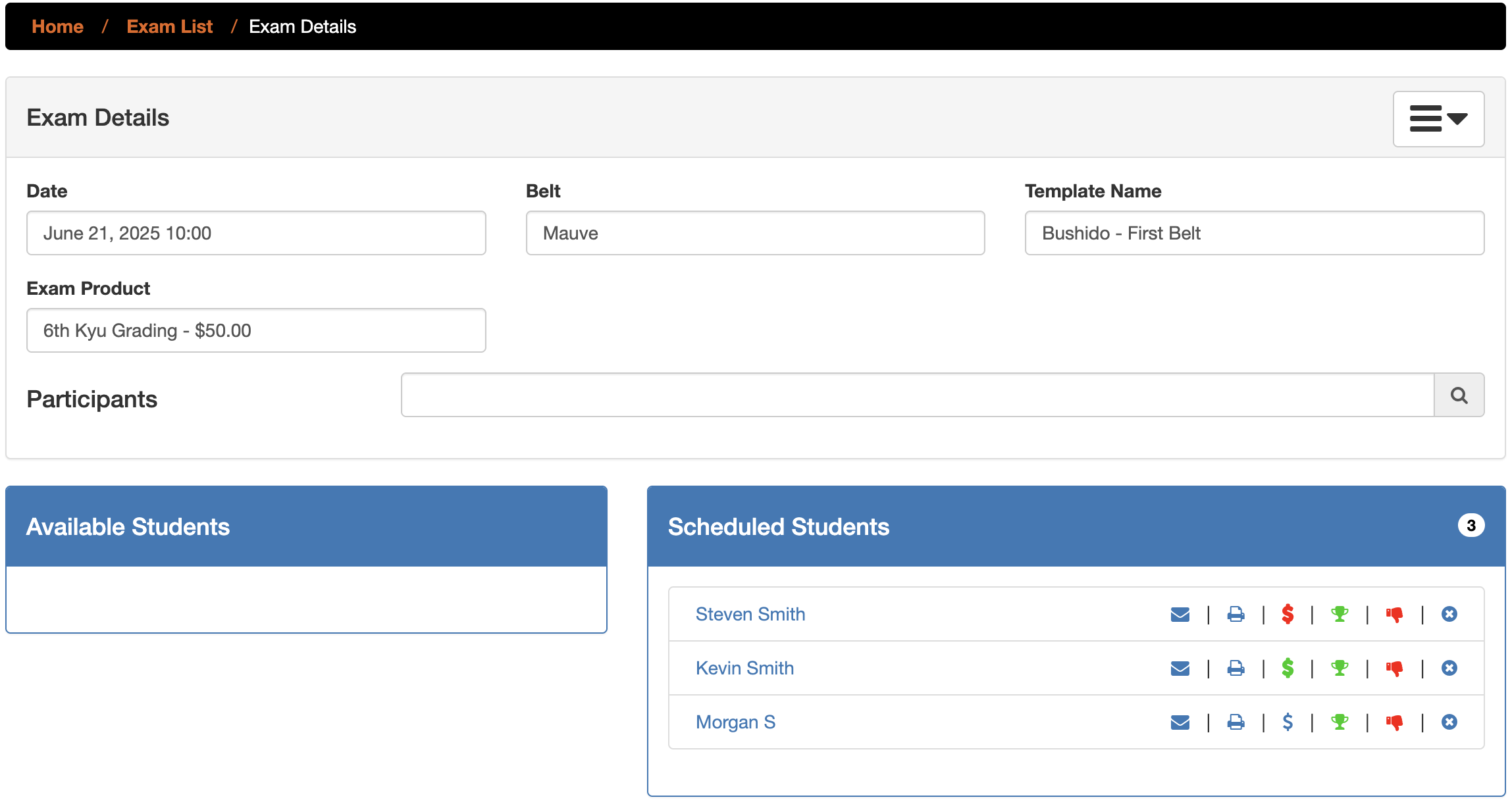
The Exam Details page offers a comprehensive interface for reviewing, updating, and managing participants for a specific martial arts belt exam. This document presents the various sections and functionalities available on this page.
Navigation
You can access the Exam Details page via the navigation breadcrumbs located at the top of the application interface:
-
Home: Click to return to the application's main dashboard.
-
Exam List: Click to display a comprehensive list of all existing exams.
Exam Information
This section presents the fundamental details related to the exam.
-
Date:
-
Displays the exact scheduled date and time for the exam (e.g.,
June 21, 2025 10:00). -
Click on the field in edit mode to open an interactive calendar/time picker, allowing you to modify the exam's schedule.
-
-
Belt:
-
Indicates the specific belt level for which this exam is being conducted (e.g.,
Mauve). -
Click on the field in edit mode to reveal a dropdown list or selection tool to assign a different belt level to the exam.
-
-
Template Name:
-
Displays the predefined template applied to this exam (e.g.,
Bushido - First Belt). This template generally governs the structure and requirements of the grading. -
Clicking on this field in edit mode may allow you to choose another template to use.
-
-
Exam Product:
-
Presents the designated exam product and its associated monetary value (e.g.,
6ème Kyu Grading - $50.00). -
Click on this field in edit mode to select the correct product associated with the exam.
-
Participant Management
This essential section facilitates the management of students who are scheduled to take the exam.
Participant Search
-
Search Field:
-
An input field positioned above the "Available Students" and "Scheduled Students" sections.
-
Enter a student's name (or part of the name) into this field to locate individuals for enrollment in the exam.
-
The search is performed automatically after typing a few letters. The search is done on all active students whose next belt is this exam.
-
Available Students
-
Header:
Available Students -
This pane will populate with a list of students whose next belt is the same as this exam, and who have less than the value configured in your Configuration Page remaining.
-
To add a student to the exam, click on the green arrow to the right of their name in this list. After selection, the student will be moved to the Scheduled Students pane.
Scheduled Students
-
Header:
Scheduled Students -
A numerical badge (e.g.,
3) displayed next to the header indicates the current number of students assigned to this exam. -
This pane lists all students currently enrolled in or designated for this exam.
Actions for Scheduled Students
For each student listed under "Scheduled Students," a set of interactive icons is provided to perform specific actions:
-
Student Name:
- Clicking on the student's name (e.g., Steven Smith) will typically direct you to their individual profile.
-
Envelope Icon (Message):
- Use this icon to send the invitation by email.
-
Printer Icon (Print):
- Click to generate and print relevant exam-related documents specific to the student.
-
Dollar Icon (Payment):
-
This icon is associated with the invoice concerning the exam.
-
Blue indicates no associated invoice.
-
Red indicates an unpaid invoice.
-
Green indicates a paid invoice.
-
-
-
Trophy Icon (Result/Achievement):
- This serves as an indicator for success during the exam.
-
Green Thumbs-Up Icon (Approve/Pass):
- Select this to officially mark a student as approved, having passed the exam. The system automatically adds the belt to their record with the date, and adjusts their next belt.
-
Red Thumbs-Down Icon (Reject/Fail):
- Click this icon to mark a student as having failed.
-
'X' Icon (Remove):
- Click this icon to remove the student from the Scheduled Students list, thereby unregistering them from the exam.