Panel Configuration
The panel configuration can be found on the "General" tab of the configuration menu.
List of available Panels
The available panels are listed below. They are configurable per dojo, not per user.
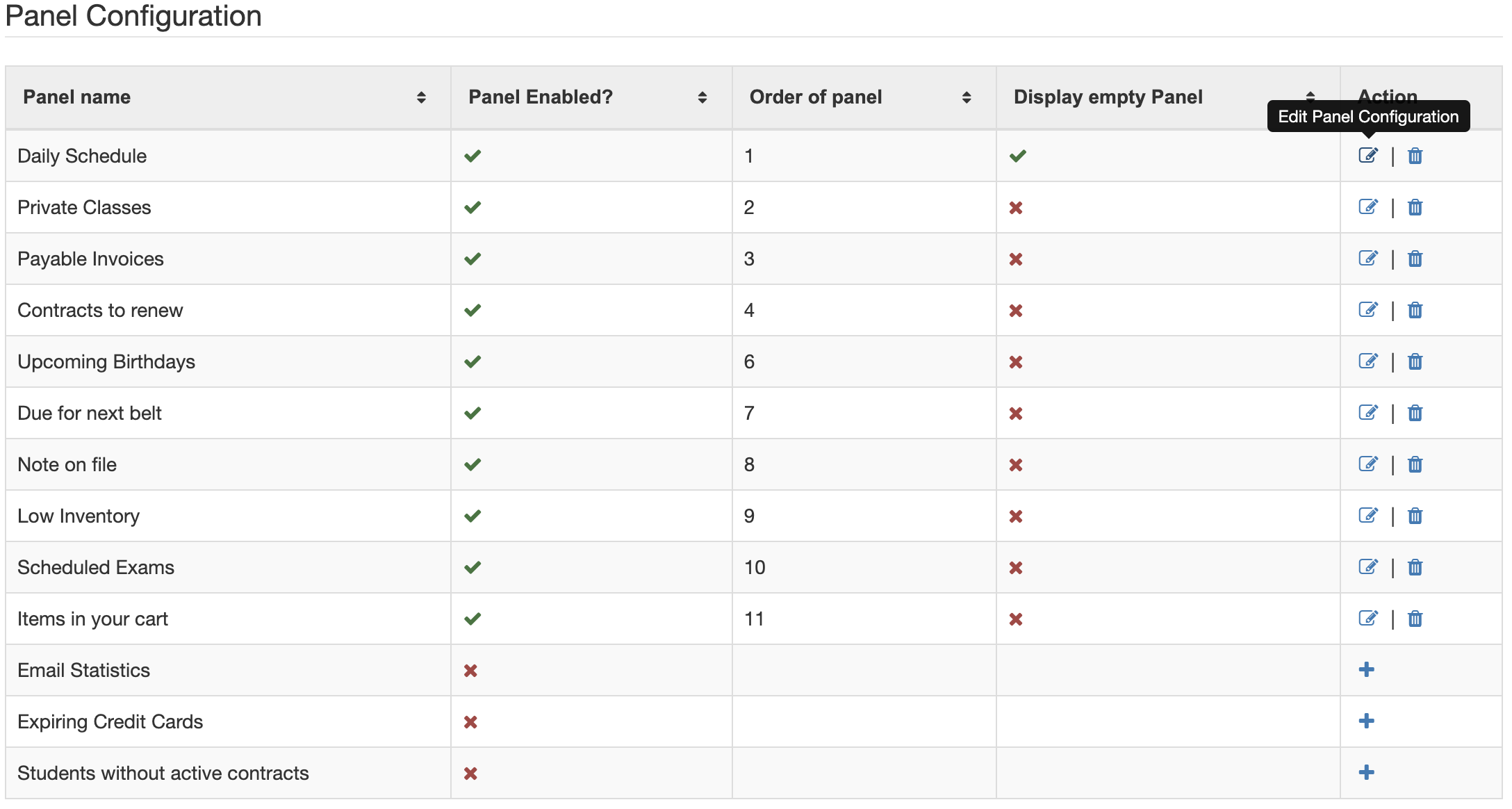
- Today's Schedule
- Private Classes
- Payable Invoices
- Contracts to Renew
- Upcoming Birthdays
- Due for next Belt
- Note on File
- Low Inventory
- Scheduled Exams
- Items in your cart
- Email Statistics
- Expiring Credit Cards
- Students Without Active Contracts
Adding or removing panels from your dashboard
- To enable a panel you want to start using, click the icon.
- To remove a panel you aren't interesting in using, click the icon to remove it.
- To modify the available parameters of a given panel, please click the icon, and adjust the optional fields.
Editing a Panel
Panels are independant, and have no link on each other. The order can be changed, as well as their presence.
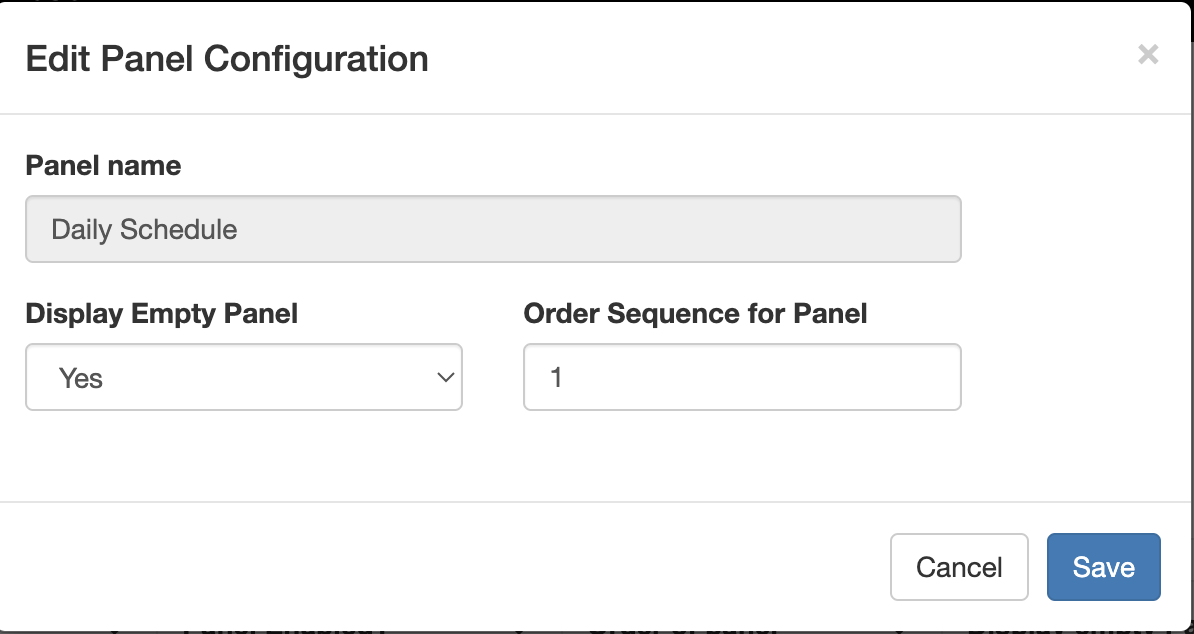
Display Name
You cannot change this field, it is a "friendly name" to be able to identify what it does.
Display an Empty Panel
This toggle is to tell the system to still display an empty box, if no applicable data is found for it. As an example, display the "Upcoming Birthday's" panel, if there are no birthdays in that month.
The possible values are Yes or No. Yes will always display the panel, even if no datat is found. No, will hide the panel from view, shifting all other panels over by one space.
Order Sequence for Panel
This is the sequence in which to display the panel among the rest. This does not take into account positioning of panels that are hidden. Having multiple panels with the same order does offers no guarantee in which order they will be displayed.
If a panel is identified as 4th position, but the 2 previous ones are hidden due to no data, this panel will appear in the second position.